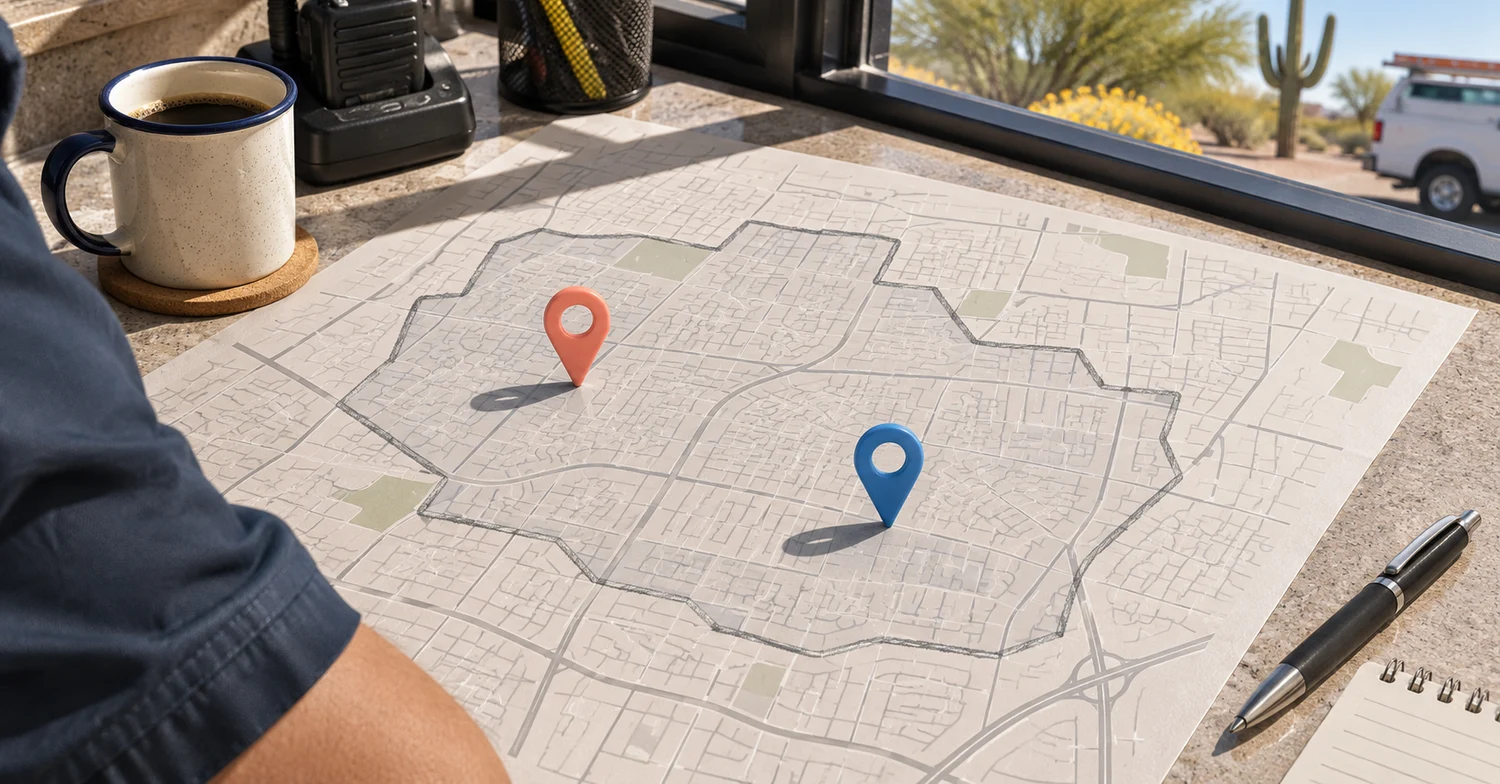
A Phoenix plumber gets two calls from people who clicked a search ad. One person is out of state and arranging a repair at a rental in Phoenix. The other is sitting in Phoenix and asking about a property beyond the crew’s coverage. A campaign setting based on the searcher’s location can miss the first job and still bring in the second.
Before tightening a campaign’s geography, check three things together: the area your team serves, the locations Google matched, and the locations of the jobs customers actually requested. Start with one service and one campaign.
Write down where your crew can take the job
Ask whoever schedules work to list the cities or ZIP codes they can cover for that service, including any exceptions. A company might replace water heaters across the metro area during the week and limit urgent evening repairs to a smaller area. Use the coverage in effect during your review period. If the campaign offers evening service, check the evening rule.
In your intake records, use the job ZIP code or city to classify each genuine request as in area, out of area or unknown. Ask for that information in the first reply when it’s missing. Deduplicate repeat calls about the same job and keep contact details and street addresses out of the review sheet.
Check what the ad platform matched
In Google Ads, open Campaigns, then Insights & reports, then When and where your ads showed. Choose Matched locations and filter to your campaign and review period. Record clicks, cost and any unspecified locations. The Targeted locations view shows performance for the areas you selected. Matched locations can reflect where someone was or a place they showed interest in. Treat both views as campaign summaries and keep job locations in your separate intake review. [1][2]
Record the campaign’s location option as well. For Search, Google describes Presence or Interest as including people likely to be in or regularly in the target area and people who show interest in it. Presence limits matching to people likely to be in or regularly in the area. Google uses signals to estimate location, so coverage can vary. Either setting still leaves your staff responsible for confirming where the work is. [3]
Compare one campaign with a week of requests
Use a period long enough for staff to finish checking the job locations. Count only requests you can reasonably tie to the selected campaign with existing call or form attribution. Keep requests with unknown attribution separate. Review the two sets of totals side by side, without assigning a reported ad click to a job just because the city or date matches.
| Check | Record | What it helps you decide |
|---|---|---|
| Campaign geography | Selected areas and current location option | Does the configured reach reflect the offer? |
| Matched locations | Clicks, cost and unspecified locations | Where should you investigate ad delivery? |
| Job requests | In area, out of area and unknown | Are customers asking for work the crew can reach? |
| In-area qualified requests | Jobs that also fit the service and capacity | What should you preserve if you change targeting? |
Choose one change and measure what happens
If many requests lack a location, have staff ask for the job ZIP code and finish the intake review first. If people repeatedly ask for work outside coverage, check whether the landing page names the areas served near the call or form button. If eligible remote decision-makers are rare and the team wants to focus on customers likely to be nearby, test Presence while holding the offer and budget steady. If remote owners or property managers bring in good work, count how many of those requests the narrower setting could put at risk before testing it.
Save a dated baseline with the campaign’s settings, spend, in-area qualified requests and unknown locations. Compare a similar period after the change, with enough time for the newer requests to be classified. Check whether the number and cost of in-area qualified requests moved and note other changes that might explain the difference. Start today by asking your dispatcher to classify the last ten attributed requests using the actual job location.
Sources & research notes
Sources and their access dates are listed below. Survey findings describe their own samples; examples and calculations in this guide are illustrative.
- View matched locations and distance reports
Google Ads Help · Primary guidance checked November 16, 2026
Accessed .
Documents how to find the Matched locations view.
- About measuring geographic performance
Google Ads Help · Primary guidance checked November 16, 2026
Accessed .
Defines the location views and describes reporting limits and unspecified geography.
- About advanced location options
Google Ads Help · Primary guidance checked November 16, 2026
Accessed .
Defines the Search location options and explains that location signals have limited accuracy.